
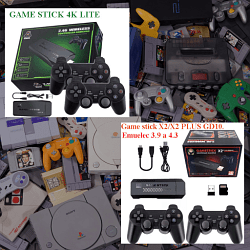
add game to game stick SEGAM 066 EM (4LAYOUT)

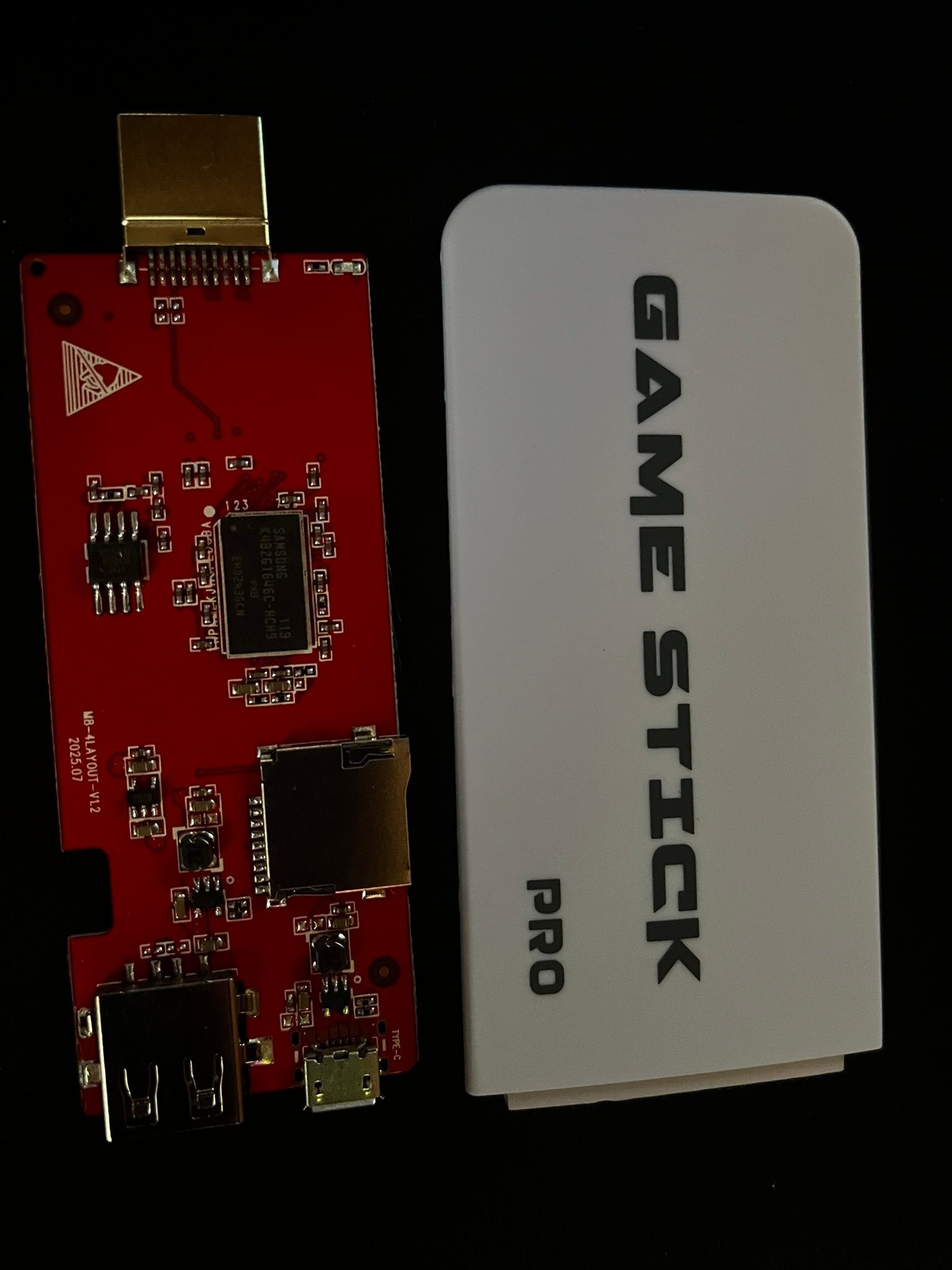
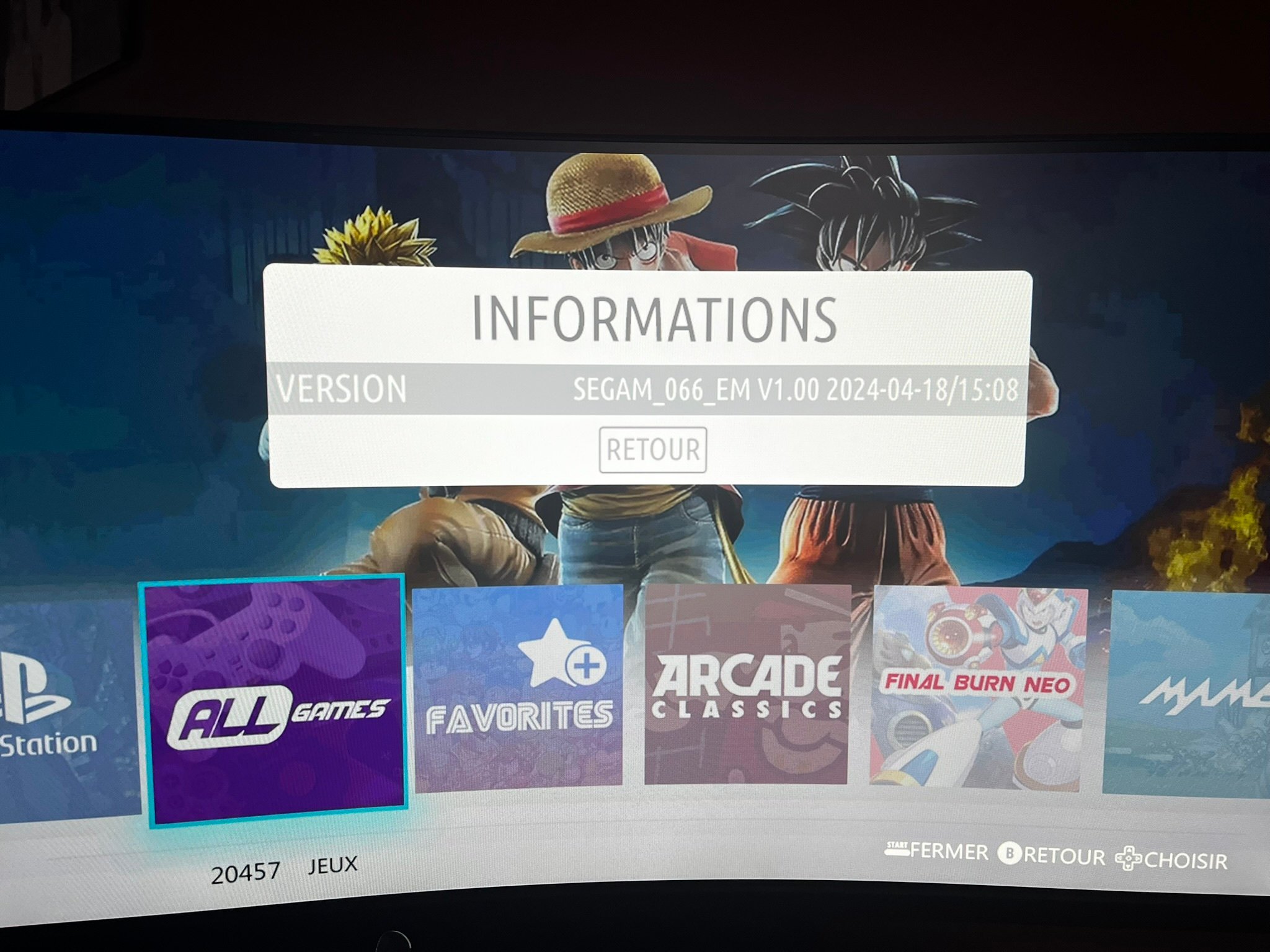
Cita de papydark en diciembre 1, 2025, 12:08Hello everyone, I am encountering a problem when I download games, for example: Pokémon Blue version on Game Boy. I put the game in the gb folder, but I can't find the game when I launch the game stick, so it's impossible to add games. If anyone has an idea.
my firmware : Game Stick M 15 Pro Placa M8-4-LAYOUT-V1.1 2025.03
I thank you for the people who will take the time to respond to me.
https://image.noelshack.com/fichiers/2025/49/1/1764612389-img-0915.jpeg
https://image.noelshack.com/fichiers/2025/49/1/1764612398-img-0920.jpeg
Hello everyone, I am encountering a problem when I download games, for example: Pokémon Blue version on Game Boy. I put the game in the gb folder, but I can't find the game when I launch the game stick, so it's impossible to add games. If anyone has an idea.
my firmware : Game Stick M 15 Pro Placa M8-4-LAYOUT-V1.1 2025.03
I thank you for the people who will take the time to respond to me.
https://image.noelshack.com/fichiers/2025/49/1/1764612389-img-0915.jpeg
https://image.noelshack.com/fichiers/2025/49/1/1764612398-img-0920.jpeg

Cita de pitabreadultra en diciembre 1, 2025, 13:54@papydark Hello friend. Thanks for joining the forum and posting a very good question and for posting your photos. I moved this discussion thread to the General Help section of the forum.
Well, there are more than 20 variations of firmware on these game stick 4k lite models. The file and folder structure in the firmware of each game stick can be different. Also, the method to add games to the SD memory card can be different for each firmware. I would like to know the structure of the files/folders in your firmware.
But... first and foremost, be sure to make a backup of your SD memory card now in a PC before adding/deleting any files on the card. The SD cards can suddenly become corrupted and stop working. It's the most common problem. Have a look at this tutorial:
https://retrogamesticks.info/wp/community/topic/como-crear-una-copia-de-seguridad-de-tarjeta-howto-make-a-backup-of-a-sd-memory-card/Also browse the section in the forum with Tutorials for adding games to various game sticks, and please watch a few of those videos.
https://retrogamesticks.info/wp/community/forum/tutoriales-como-anadir-juegos-howto-add-games/So, after you make a backup of the card, please browse the SD card in File Explorer in a PC and share a photo or screen-shot of everything you see that's on the card. Please explore into several folders and share a few screenshots. That will help immensely. Depending on the structure, the method and location to add games will be one way or another. We'll just have to figure it out.
In menus of the game-stick displaying on your tv, do you see any instructions or indications of navigating to a list menu or system menu and then pressing R2 or another button like that on the gamepad controller? - I've seen that before regarding a similar looking game-stick called a M15 or maybe M8 but with a "M18" firmware. ( I haven't yet , but should post a tutorial about that M18 here. ).
Last question, what is Noelshack .com ? - Can people use it to post and share photos ?

@papydark Hello friend. Thanks for joining the forum and posting a very good question and for posting your photos. I moved this discussion thread to the General Help section of the forum.
Well, there are more than 20 variations of firmware on these game stick 4k lite models. The file and folder structure in the firmware of each game stick can be different. Also, the method to add games to the SD memory card can be different for each firmware. I would like to know the structure of the files/folders in your firmware.
But... first and foremost, be sure to make a backup of your SD memory card now in a PC before adding/deleting any files on the card. The SD cards can suddenly become corrupted and stop working. It's the most common problem. Have a look at this tutorial:
https://retrogamesticks.info/wp/community/topic/como-crear-una-copia-de-seguridad-de-tarjeta-howto-make-a-backup-of-a-sd-memory-card/
Also browse the section in the forum with Tutorials for adding games to various game sticks, and please watch a few of those videos.
https://retrogamesticks.info/wp/community/forum/tutoriales-como-anadir-juegos-howto-add-games/
So, after you make a backup of the card, please browse the SD card in File Explorer in a PC and share a photo or screen-shot of everything you see that's on the card. Please explore into several folders and share a few screenshots. That will help immensely. Depending on the structure, the method and location to add games will be one way or another. We'll just have to figure it out.
In menus of the game-stick displaying on your tv, do you see any instructions or indications of navigating to a list menu or system menu and then pressing R2 or another button like that on the gamepad controller? - I've seen that before regarding a similar looking game-stick called a M15 or maybe M8 but with a "M18" firmware. ( I haven't yet , but should post a tutorial about that M18 here. ).
Last question, what is Noelshack .com ? - Can people use it to post and share photos ?
Cita de papydark en diciembre 2, 2025, 12:09Hello, thank you for responding, my friends.
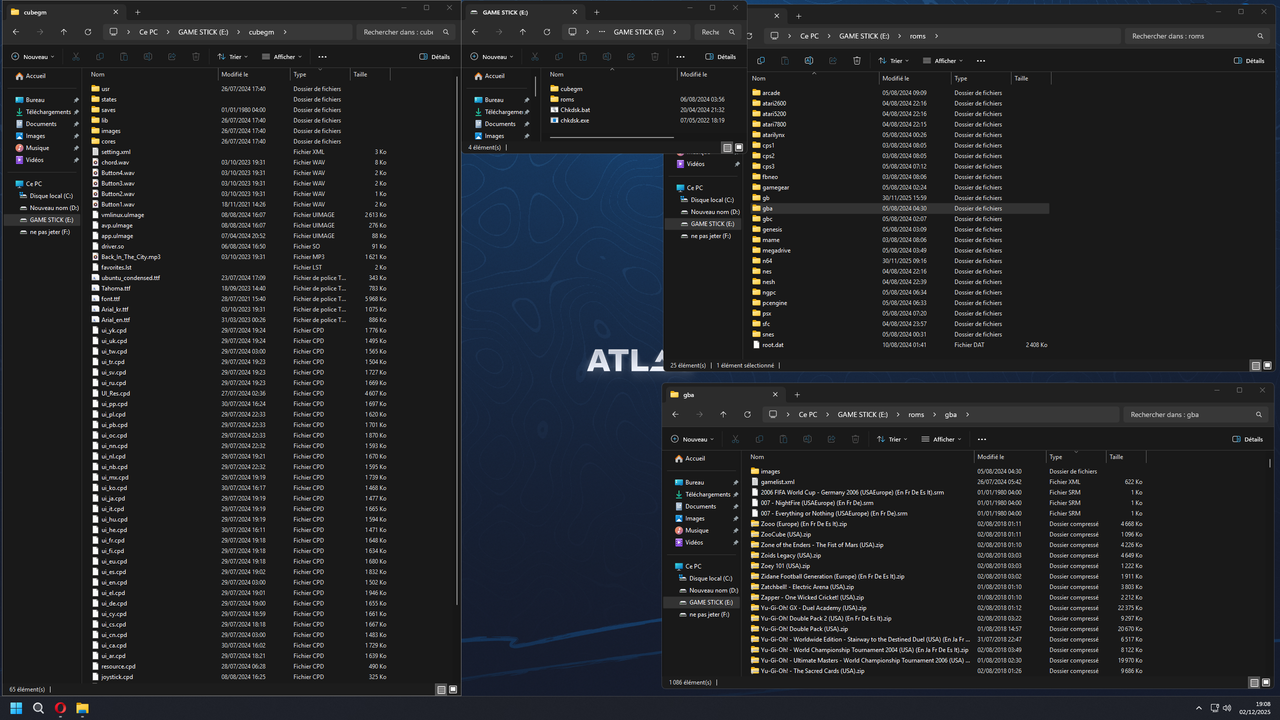
I have a backup of my firmware, so no worries on that front.So, as you requested, I have taken screenshots of the SD card folders.
I've already watched a lot of videos to fix this problem, but I still haven't succeeded.
I hope you'll be able to fix my problem, and maybe it will help other people who have the same problem as me.No, I don't have any other menu apart from what I showed you in the first photos I sent.
https://postimg.cc/KkQRqxBn
[spoiler title="click here"] https://i.postimg.cc/PJnYqqqF/image-2025-12-02-190913484.png [/spoiler]
Hello, thank you for responding, my friends.
I have a backup of my firmware, so no worries on that front.
So, as you requested, I have taken screenshots of the SD card folders.
I've already watched a lot of videos to fix this problem, but I still haven't succeeded.
I hope you'll be able to fix my problem, and maybe it will help other people who have the same problem as me.
No, I don't have any other menu apart from what I showed you in the first photos I sent.
Cita de pitabreadultra en diciembre 2, 2025, 14:43Hello. I'm glad you have a backup the sd card. I recommend that you save it in a good place on a SSD in a PC. Anyway, I want to follow-up on the question about menus and obscure things that could in menus. So, have you experimented with controls? Did you press every single button and combinations of 2 buttons simultaneously on the gamepad controller while viewing the main menu to determine if something cool happens? - For example, press inwards on the two sticks L3 + R3, or press two triggers, or two bumpers, or press SELECT + START at the same time. Please try that and let me if anything appears or happens.
In another gamestick with M18 firmware, I found a "Customize" menu and that allowed me to launch games that I added to the sd card. (See my screenshot at the bottom). Have you seen anything like that on your game-stick?
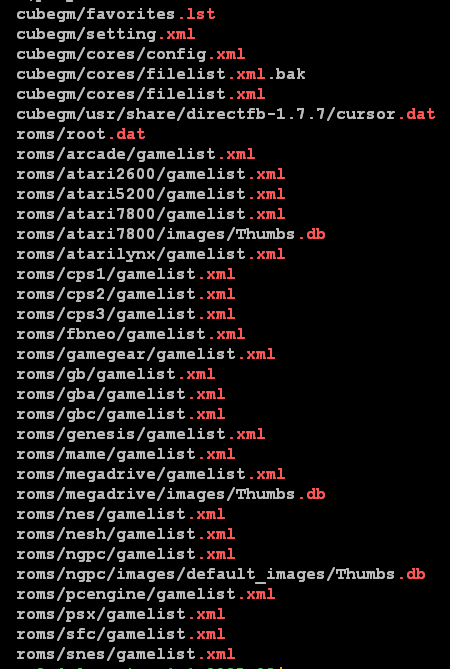
Well, thanks for your screenshot. I zoomed in and look very carefully to see the words in your screenshot. Hehe. I was hoping that you would post 2 or more separated and high resolution screenshots of different folders and files. Eh, it's okay. I discovered some files in the picture that could be useful.
I don't have this particular game-stick , so I downloaded a copy of the firmware M8 4LAYOUT V1.1 2025.03, SEGAM 066 EM 2024-04-18, from Internet Archive. Then, I searched for various file names inside the backup copy and found various text files. The XML files seem most interesting. In the roms there are subfolders for each game platform (as you well know). In each folder for a given game platform , there is a gamelist.xml text file. I have an idea to edit the file. But be aware that I have not done this before on a "game stick 4k lite", and, so I wonder if it works or just makes the TV become all black, haha.
First, make a backup copy of the gamelist file that you would like to edit. Then you can open the file in any advanced text editor or code editor. I use Notepad++ (plus plus) in MS-Windows. My suggestion is to go to the very end of the gamelist file, and add a block of XML text for the new game. There is a blue screenshot below. I noticed that the number for the "gameid" and the numbers for the languages "zh_CN" , "en_US" etc are the same. I noticed that the "class_type" number is unique for each game platform. For Gameboy, the number is 7. I noticed that the text for "timer" is the abbreviated name of the game platform. (and so on ...)
You probably get the gist of this gamelist XML file and can edit the file as needed for each new game. I suppose you could watch some tutorials on YT about editing XML files to learn more about the topic. Well, I hope what I put here helps you, and I hope it works. - Pedro
(the next screenshot is from a M18 firmware with a M6 plate [circuit board] - click on Spoiler to open it)
[spoiler title=""]
[/spoiler]
Hello. I'm glad you have a backup the sd card. I recommend that you save it in a good place on a SSD in a PC. Anyway, I want to follow-up on the question about menus and obscure things that could in menus. So, have you experimented with controls? Did you press every single button and combinations of 2 buttons simultaneously on the gamepad controller while viewing the main menu to determine if something cool happens? - For example, press inwards on the two sticks L3 + R3, or press two triggers, or two bumpers, or press SELECT + START at the same time. Please try that and let me if anything appears or happens.
In another gamestick with M18 firmware, I found a "Customize" menu and that allowed me to launch games that I added to the sd card. (See my screenshot at the bottom). Have you seen anything like that on your game-stick?
Well, thanks for your screenshot. I zoomed in and look very carefully to see the words in your screenshot. Hehe. I was hoping that you would post 2 or more separated and high resolution screenshots of different folders and files. Eh, it's okay. I discovered some files in the picture that could be useful.
I don't have this particular game-stick , so I downloaded a copy of the firmware M8 4LAYOUT V1.1 2025.03, SEGAM 066 EM 2024-04-18, from Internet Archive. Then, I searched for various file names inside the backup copy and found various text files. The XML files seem most interesting. In the roms there are subfolders for each game platform (as you well know). In each folder for a given game platform , there is a gamelist.xml text file. I have an idea to edit the file. But be aware that I have not done this before on a "game stick 4k lite", and, so I wonder if it works or just makes the TV become all black, haha.
First, make a backup copy of the gamelist file that you would like to edit. Then you can open the file in any advanced text editor or code editor. I use Notepad++ (plus plus) in MS-Windows. My suggestion is to go to the very end of the gamelist file, and add a block of XML text for the new game. There is a blue screenshot below. I noticed that the number for the "gameid" and the numbers for the languages "zh_CN" , "en_US" etc are the same. I noticed that the "class_type" number is unique for each game platform. For Gameboy, the number is 7. I noticed that the text for "timer" is the abbreviated name of the game platform. (and so on ...)
You probably get the gist of this gamelist XML file and can edit the file as needed for each new game. I suppose you could watch some tutorials on YT about editing XML files to learn more about the topic. Well, I hope what I put here helps you, and I hope it works. - Pedro
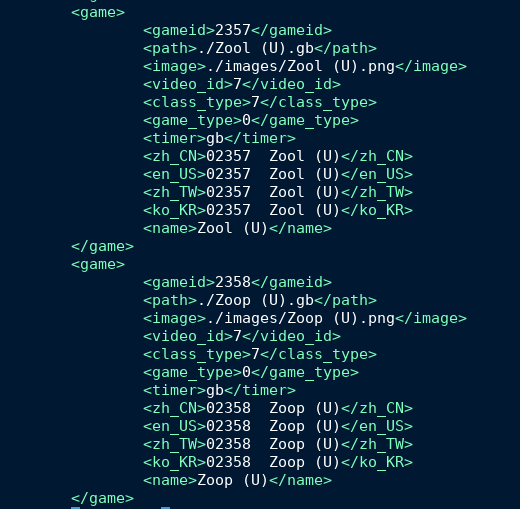
(the next screenshot is from a M18 firmware with a M6 plate [circuit board] - click on Spoiler to open it)
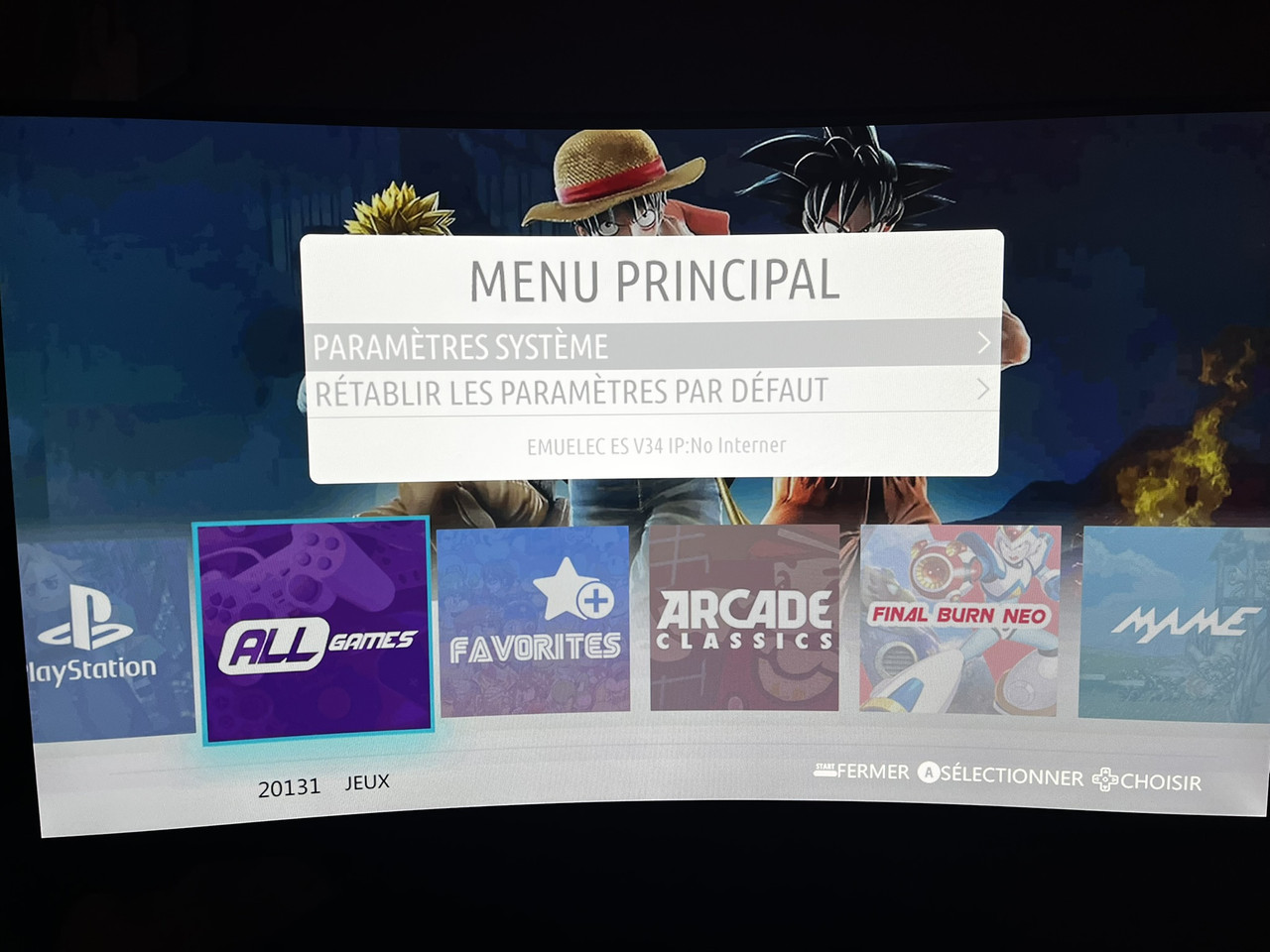
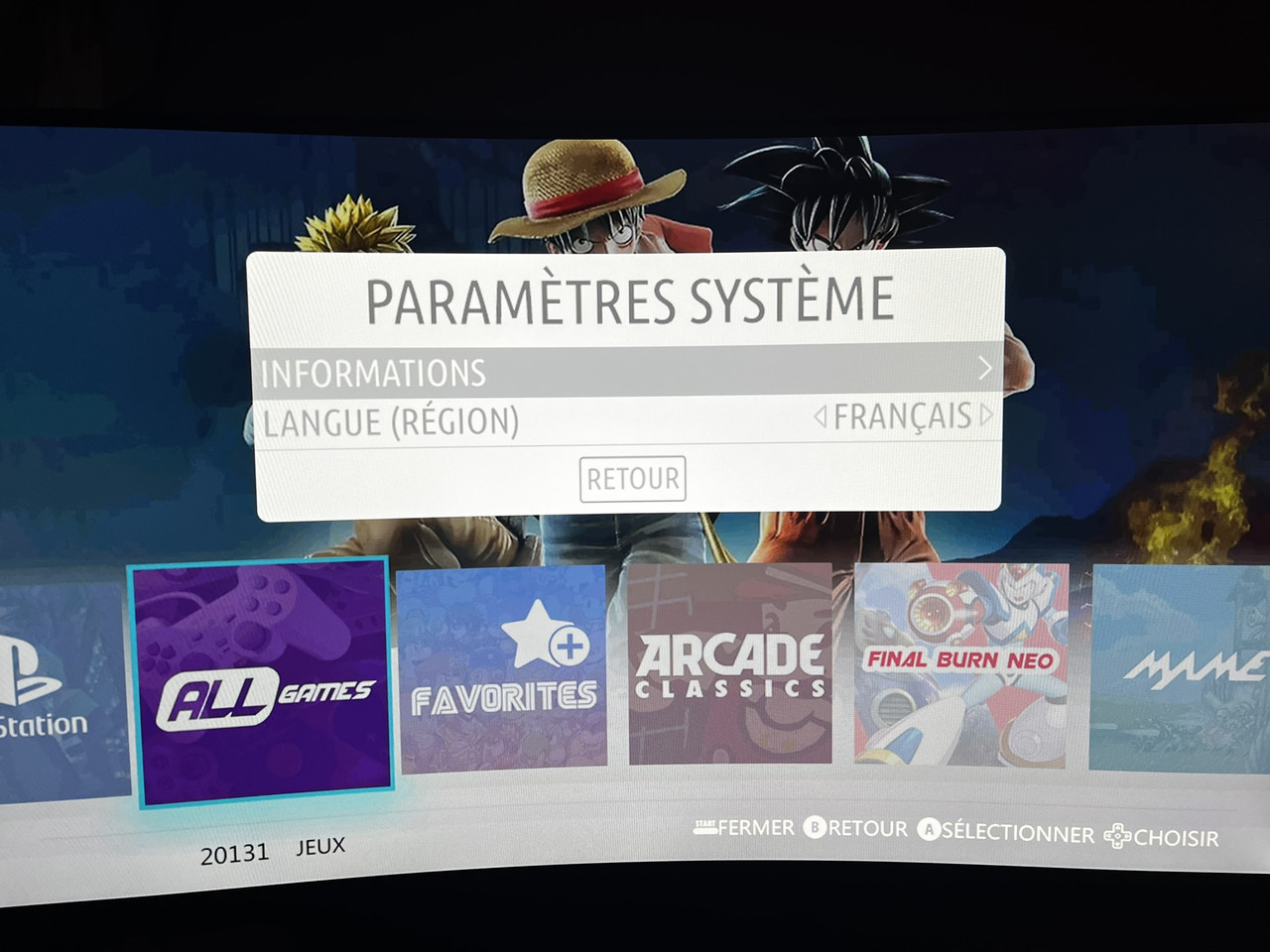
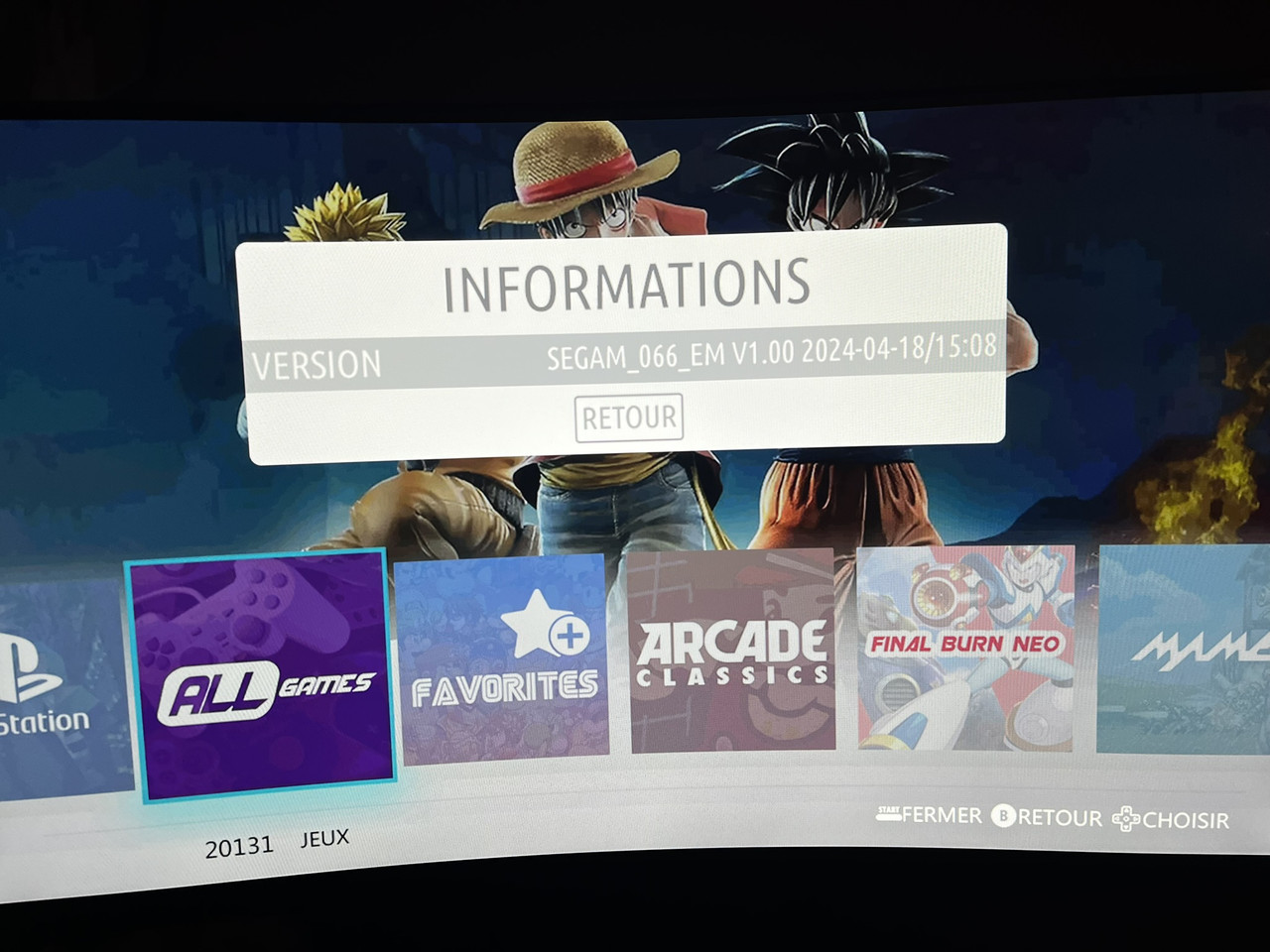
Cita de papydark en diciembre 3, 2025, 12:42Good evening, I tried what you asked me to do: pressing the L3 and R3 buttons simultaneously, but nothing happens. The same thing happens with the triggers. The only buttons that do anything are the Select and Start buttons, but I don't have much to show you. I took some photos to show you the options I have access to.
- click on Spoiler
[spoiler title=""]
[/spoiler]
Good evening, I tried what you asked me to do: pressing the L3 and R3 buttons simultaneously, but nothing happens. The same thing happens with the triggers. The only buttons that do anything are the Select and Start buttons, but I don't have much to show you. I took some photos to show you the options I have access to.
- click on Spoiler
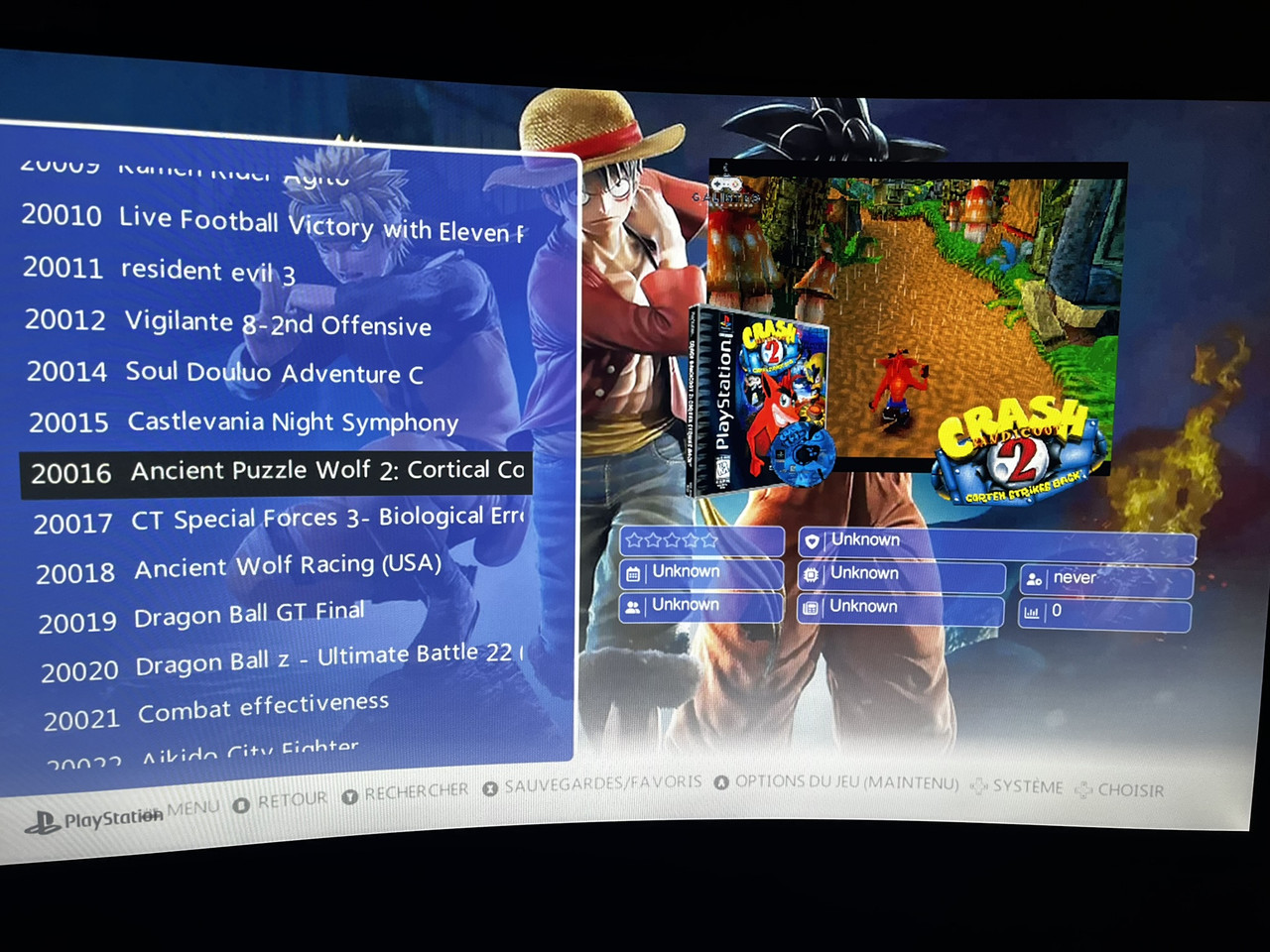
Cita de pitabreadultra en diciembre 3, 2025, 13:01Hello. good evening. Thanks for the photos. I put them inside a +Spoiler box to maybe try to conserve bandwidth when Google/Bing/Yahoo search engines scan this page.
Yeah, I didn't see any special R2, "file explore", or "reload" type of options in your photos. Well, let me know how you go along with editing those gamelist.xml files ☺
Cheers.
Hello. good evening. Thanks for the photos. I put them inside a +Spoiler box to maybe try to conserve bandwidth when Google/Bing/Yahoo search engines scan this page.
Yeah, I didn't see any special R2, "file explore", or "reload" type of options in your photos. Well, let me know how you go along with editing those gamelist.xml files ☺
Cheers.
Cita de pitabreadultra en diciembre 4, 2025, 06:43Cita de papydark en diciembre 3, 2025, 12:42Good evening, I tried what you asked me to do: pressing the L3 and R3 buttons simultaneously, but nothing happens. The same thing happens with the triggers. The only buttons that do anything are the Select and Start buttons, but I don't have much to show you. I took some photos to show you the options I have access to.
[spoiler title=""]
[/spoiler]
Thanks to your informative and helpful screenshots photos, I may have found a tutorial that may help you (and other visitors). Information in the video seems to match some aspects your game-stick even though the plate is different and the file/folder structure is different. So, at least the video can give us some ideas about how to maybe do something good, hehe
The "Galisteo Games Retro" logo in your gamestick and in the tutorial video is the same.
https://youtu.be/yScmfnRr7pU?list=PLoVe4A2DghvURAupXGySwvDvdXcAnejqK

Cita de papydark en diciembre 3, 2025, 12:42Good evening, I tried what you asked me to do: pressing the L3 and R3 buttons simultaneously, but nothing happens. The same thing happens with the triggers. The only buttons that do anything are the Select and Start buttons, but I don't have much to show you. I took some photos to show you the options I have access to.
Spoiler
Thanks to your informative and helpful screenshots photos, I may have found a tutorial that may help you (and other visitors). Information in the video seems to match some aspects your game-stick even though the plate is different and the file/folder structure is different. So, at least the video can give us some ideas about how to maybe do something good, hehe
The "Galisteo Games Retro" logo in your gamestick and in the tutorial video is the same.

Cita de papydark en diciembre 6, 2025, 05:59Hello everyone, I found a YouTube video of someone showing how to add games. I also downloaded the firmware he uses, and it works perfectly. If you follow all the steps, everything works perfectly. I want to thank you for the help you tried to give me, and I hope this can help others. https://www.youtube.com/watch?v=cWQDDgaKkmc
Hello everyone, I found a YouTube video of someone showing how to add games. I also downloaded the firmware he uses, and it works perfectly. If you follow all the steps, everything works perfectly. I want to thank you for the help you tried to give me, and I hope this can help others.
Cita de pitabreadultra en diciembre 6, 2025, 08:47Cita de papydark en diciembre 6, 2025, 05:59Hello everyone, I found a YouTube video of someone showing how to add games. I also downloaded the firmware he uses, and it works perfectly. If you follow all the steps, everything works perfectly. I want to thank you for the help you tried to give me, and I hope this can help others. https://www.youtube.com/watch?v=cWQDDgaKkmcWonderful! I am glad that you found s kind of solution to adding games to your game-stick. Did you fetch from google drive or somewhere and install another firmware version SEGA v6.0 2024-12-05 ?
Is my attached photo the same as your firmware version that you have installed now?
Please here post the link to the firmware that Al-Hwaidi displayed in his video or post another link to another site for the firmware.
Thanks.
Cita de papydark en diciembre 6, 2025, 05:59Hello everyone, I found a YouTube video of someone showing how to add games. I also downloaded the firmware he uses, and it works perfectly. If you follow all the steps, everything works perfectly. I want to thank you for the help you tried to give me, and I hope this can help others.
Wonderful! I am glad that you found s kind of solution to adding games to your game-stick. Did you fetch from google drive or somewhere and install another firmware version SEGA v6.0 2024-12-05 ?
Is my attached photo the same as your firmware version that you have installed now?
Please here post the link to the firmware that Al-Hwaidi displayed in his video or post another link to another site for the firmware.
Thanks.
Archivos subidos: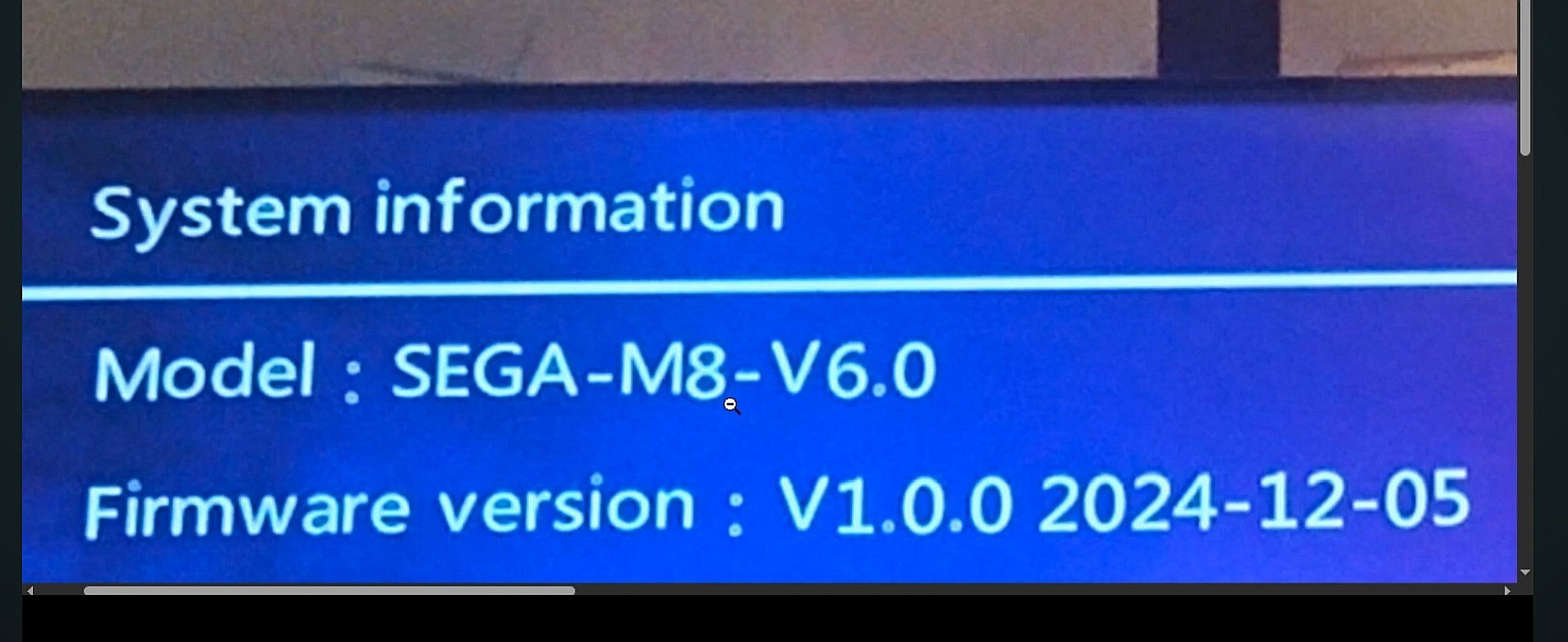

Cita de pitabreadultra en diciembre 6, 2025, 09:26@papydark
If I understand the steps correctly:
- *correction, thanks to papydark - completely format a new sd memory card as FAT32 non-bootable in rufus or similar tool. Only 1 single partition should exist on the sd card.
- install firmware version SEGA v6.0 2024-12-05 on a new sd memory card, and it is probably 32 GB size
- test the game stick. power it on and check its functions. then power off the game stick and remove the sd card
- if needed, convert bin/cue or another file format to iso for PS1 games using the program AnyToISO
- most other games can be contained in a compressed zip file to conserve space
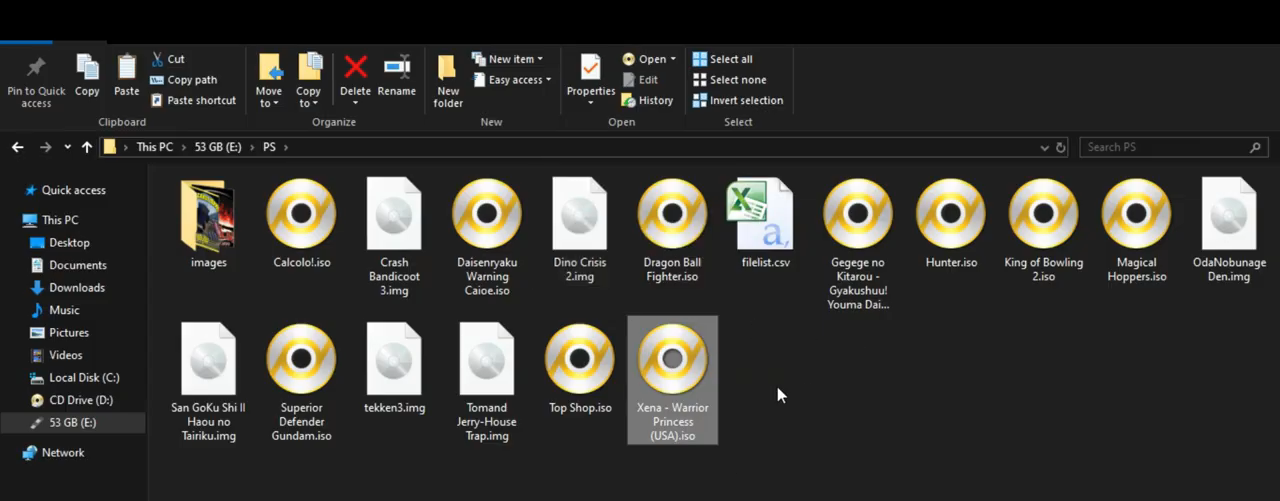
- copy new game ROMS to correct console folders PS GBA SFC MD ATARI FC (et cetera) on the sd memory card
- * do not copy new game ROMS to the "roms" folder -- the roms folder is only for factory issued roms -- right?
- open each folder for each game console PS GBA SFC MD ATARI FC (et cetera)
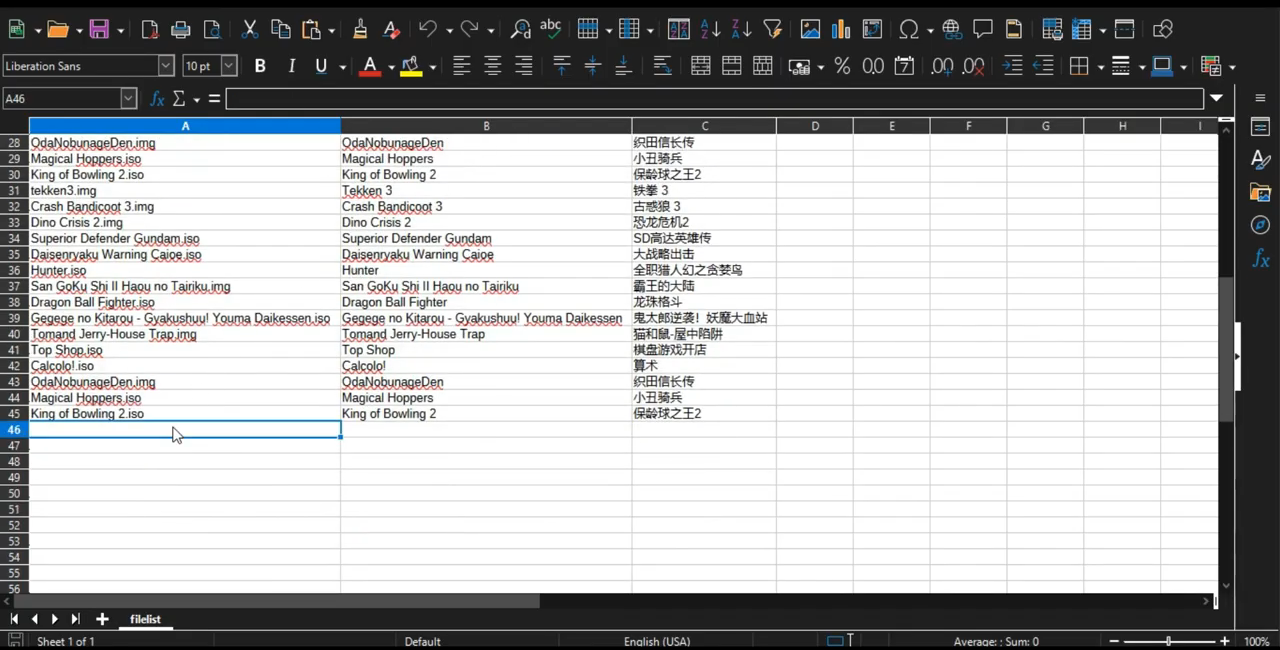
- open and edit each file "filelist.csv" in Excel or in Calc (LibreOffice) in each console folder, PS GBA SFC MD ATARI FC (et cetera)
- in Excel or Calc, add the name of the game file and extension img or iso or bin in column A, then add game title in column B, and add game title again in column C
- copy game pictures (images, or screenshots) of each game to each console folder. for example "Xena - Warrior Princes.png" picture is for a PS1 game in the PS folder with the same name "Xena - Warrior Princes.iso"
papydark, Is that all correct?
The principle and steps demonstrated here are similar to those for adding games to a Kinhank S2 Pro stick or a D3 Plus stick and possibly other sticks that have a H133 processor and the plate G02 H133 2P8 V2.0 or a similar plate. Editing the games list in a CSV file is crucial to success. ☺
there https://archive.org/details/d3plus-v1-20231017-gamestick
and there https://archive.org/details/kinhank-s2pro-g02-h133-20240123-gamestick[spoiler title="haga clic aqui - click here - video tutorial"]https://youtu.be/cWQDDgaKkmc[/spoiler]
If I understand the steps correctly:
- *correction, thanks to papydark - completely format a new sd memory card as FAT32 non-bootable in rufus or similar tool. Only 1 single partition should exist on the sd card.
- install firmware version SEGA v6.0 2024-12-05 on a new sd memory card, and it is probably 32 GB size
- test the game stick. power it on and check its functions. then power off the game stick and remove the sd card
- if needed, convert bin/cue or another file format to iso for PS1 games using the program AnyToISO
- most other games can be contained in a compressed zip file to conserve space
- copy new game ROMS to correct console folders PS GBA SFC MD ATARI FC (et cetera) on the sd memory card
- * do not copy new game ROMS to the "roms" folder -- the roms folder is only for factory issued roms -- right?
- open each folder for each game console PS GBA SFC MD ATARI FC (et cetera)
- open and edit each file "filelist.csv" in Excel or in Calc (LibreOffice) in each console folder, PS GBA SFC MD ATARI FC (et cetera)
- in Excel or Calc, add the name of the game file and extension img or iso or bin in column A, then add game title in column B, and add game title again in column C
- copy game pictures (images, or screenshots) of each game to each console folder. for example "Xena - Warrior Princes.png" picture is for a PS1 game in the PS folder with the same name "Xena - Warrior Princes.iso"
papydark, Is that all correct?
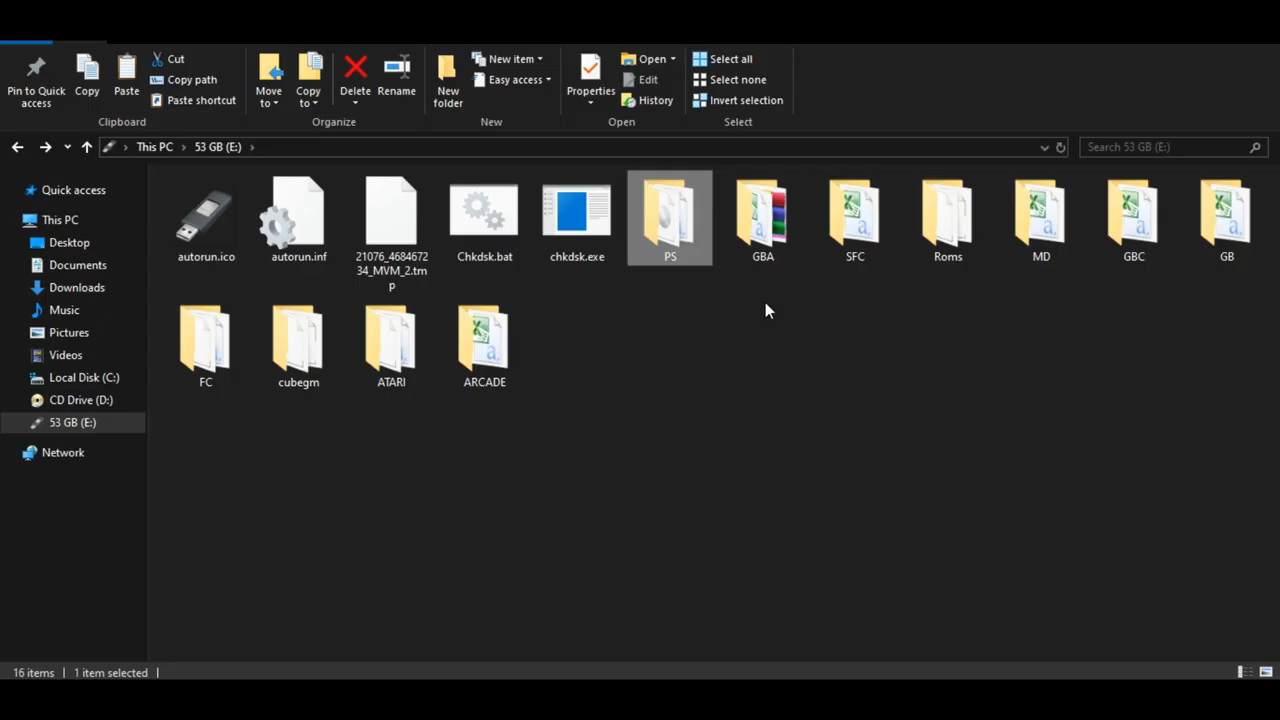
The principle and steps demonstrated here are similar to those for adding games to a Kinhank S2 Pro stick or a D3 Plus stick and possibly other sticks that have a H133 processor and the plate G02 H133 2P8 V2.0 or a similar plate. Editing the games list in a CSV file is crucial to success. ☺
there https://archive.org/details/d3plus-v1-20231017-gamestick
and there https://archive.org/details/kinhank-s2pro-g02-h133-20240123-gamestick